How To Read Your Results Page
Open your Results page, see the monthly headline and key metrics, and drill into full history for clicks, keywords and more.
- Overviewkey metrics
- Show numbersfull history
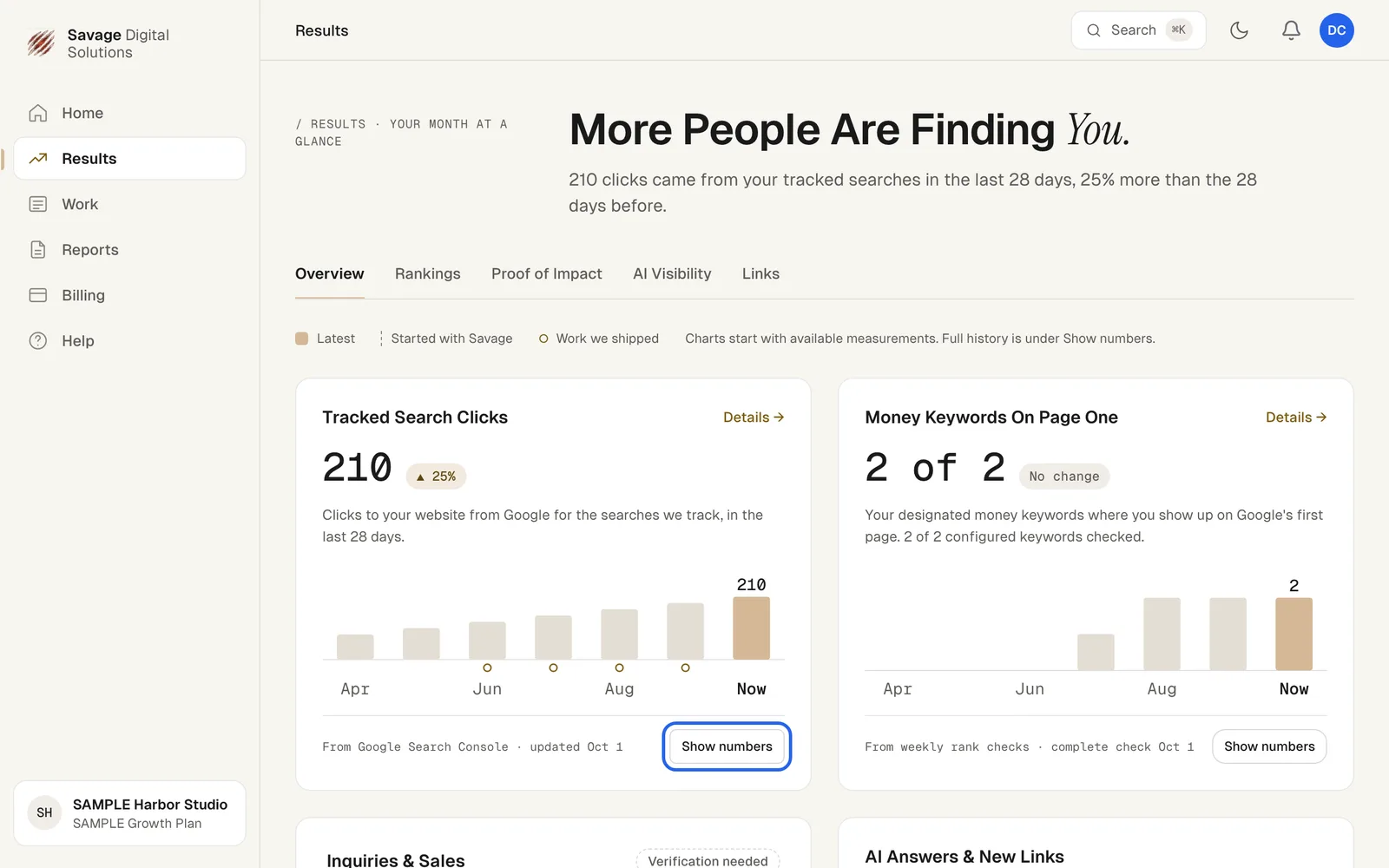
Your Results page gives you a clear snapshot of how your business is performing each month. It starts with a headline about the month and breaks down the key numbers into easy-to-read cards.
Step 1
Open Your Results Overview
Choose Results in the sidebar to open Your Month At A Glance. You will see tabs for Overview, Rankings, Proof of Impact, AI Visibility and Links. The overview shows your total tracked search clicks and how they compare to the previous 28 days.
Step 2
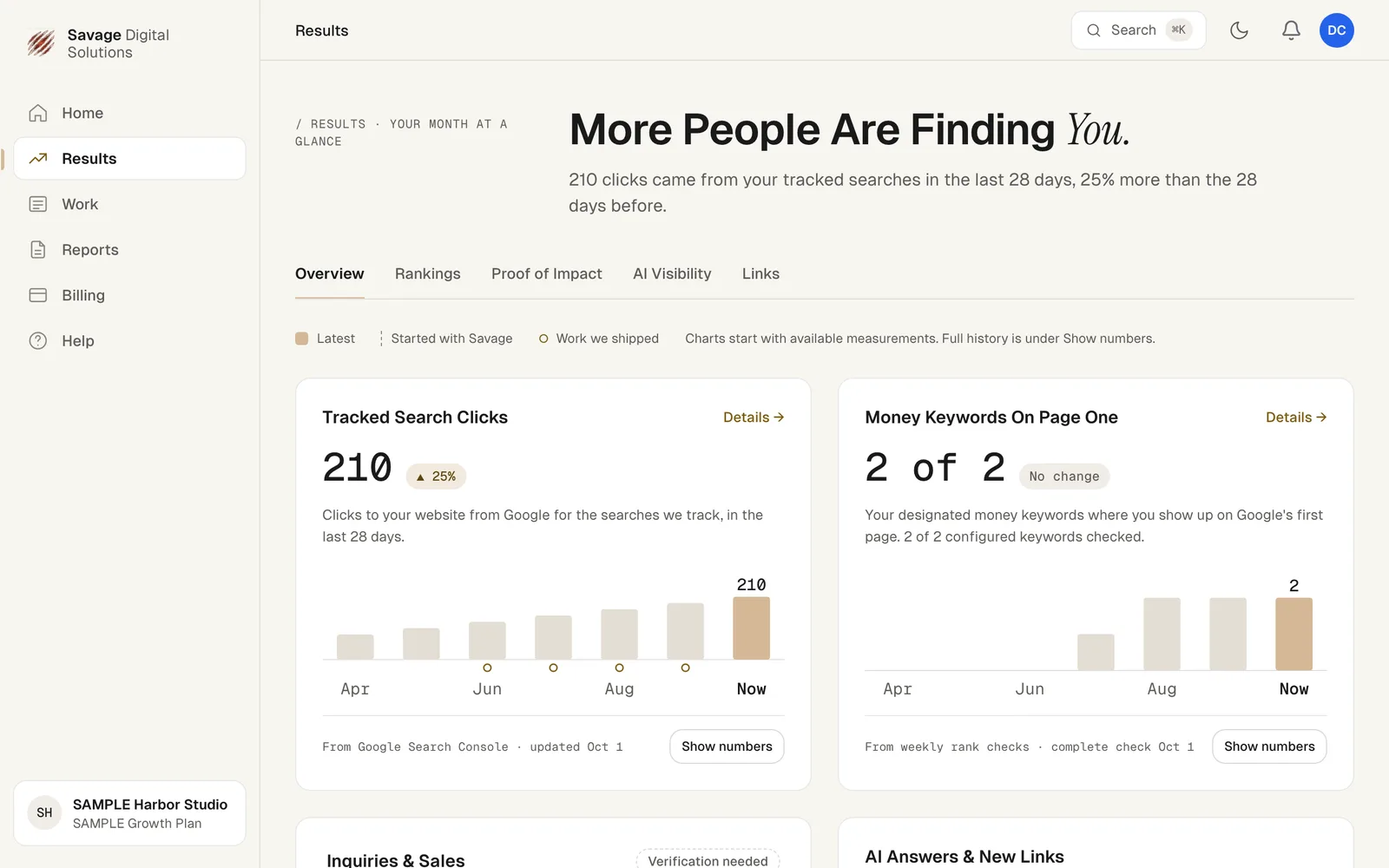
View Details and Full History
Each card shows the current number, the change from last month, a chart, and where the data comes from. Choose Details to open the full view for that metric. Choose Show numbers under any card to see the full history of that measurement.