How To Check Your Backlink Report
View your link building progress, track new placements, and download the full report from the Backlinks page.
- Download Reportsave a copy
Your Backlink Report shows your link building progress. You can find it under Results in your Savage Digital Solutions portal.
Step 1
Open the Backlink Report
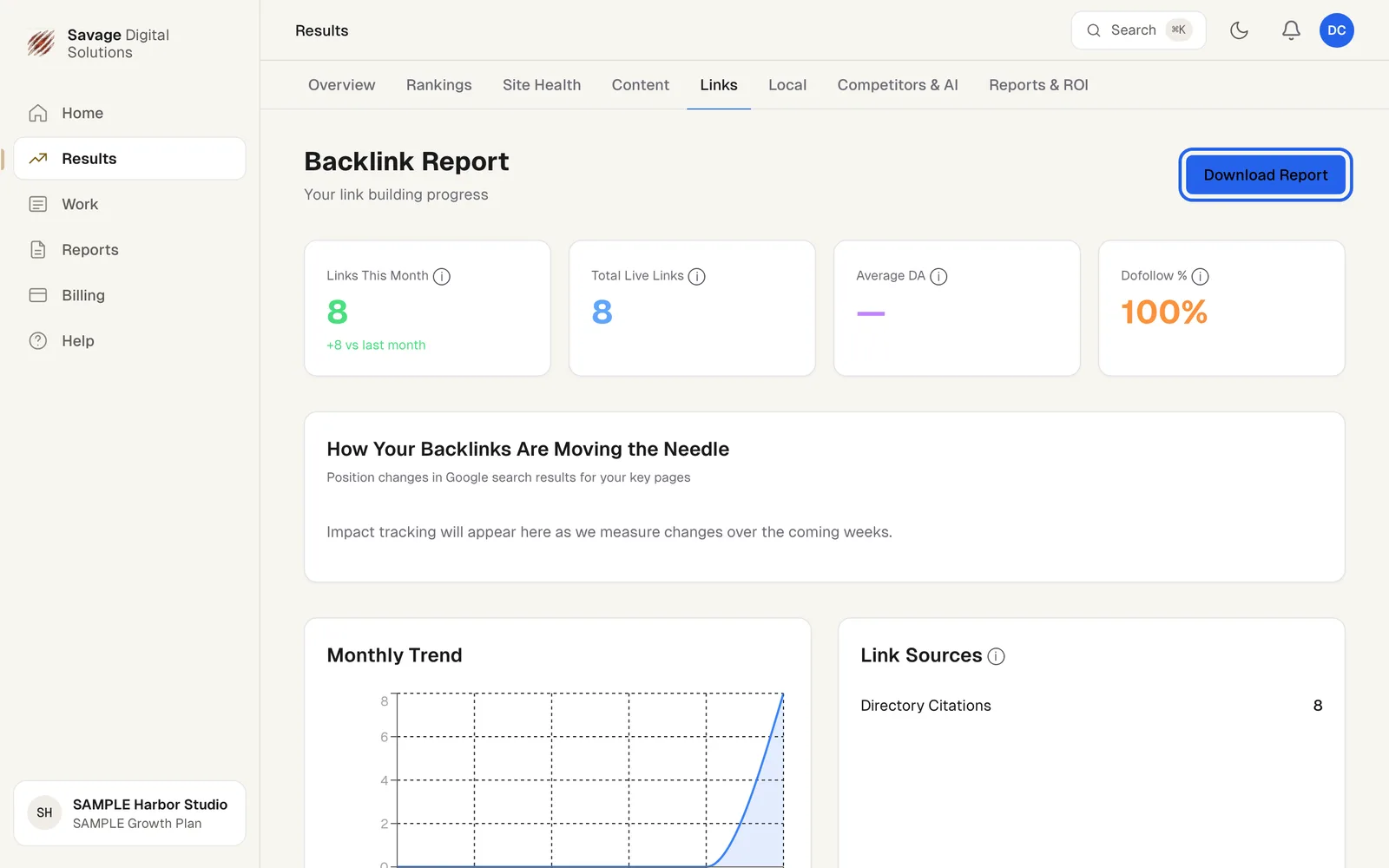
Choose Results in the sidebar, then the Links tab, which opens your Backlink Report. At the top, you will see key metrics:
- Links This Month shows new links added.
- Total Live Links is your current count.
- Average DA and Dofollow % give an overview of link quality.
The info icons next to each number explain what they mean. Choose Download Report to save a copy.
Step 2
Review Recent Placements and Trends
Below the main metrics, How Your Backlinks Are Moving the Needle tracks position changes in Google search results. The Monthly Trend chart visualizes your link growth over time.
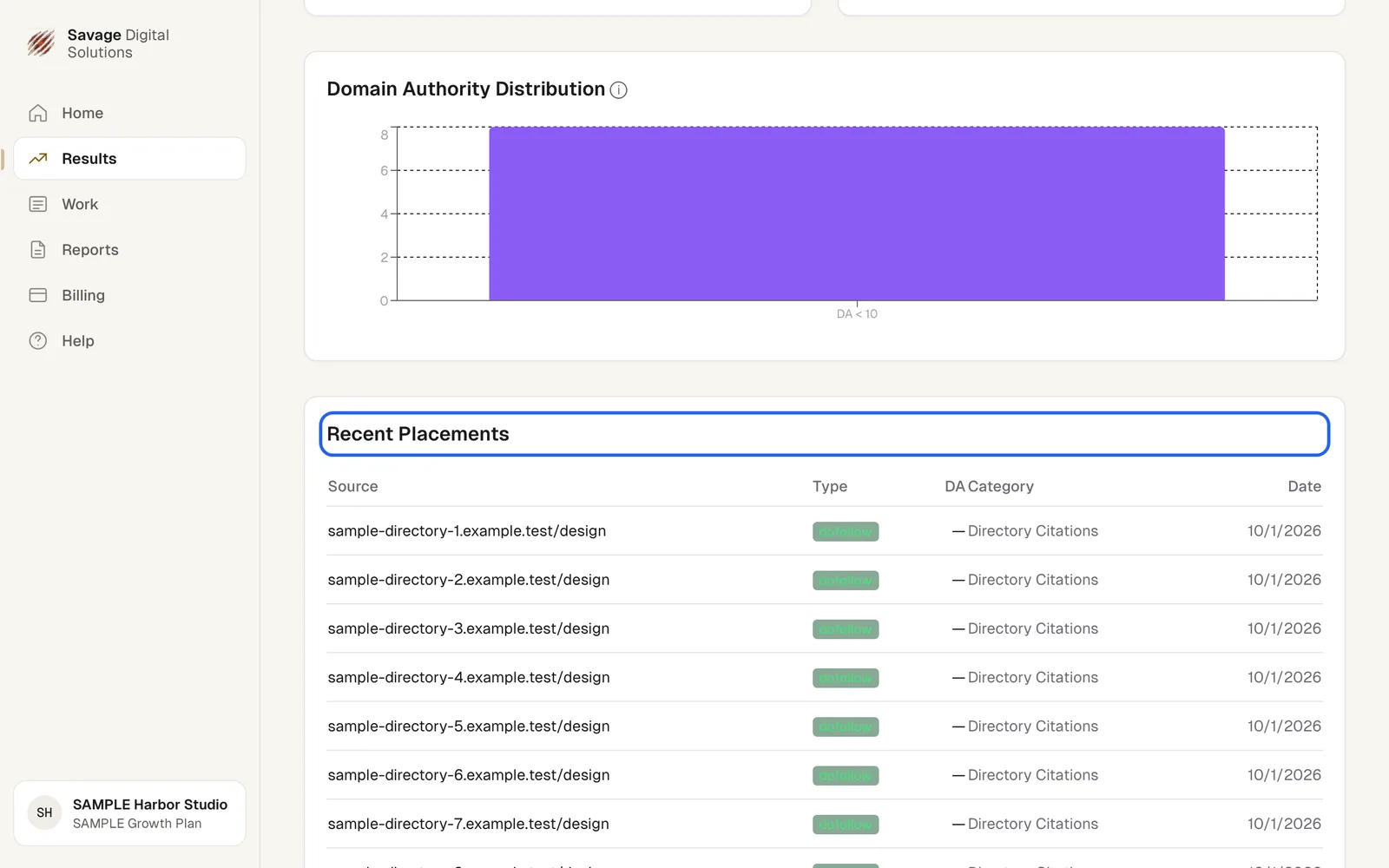
The Recent Placements table lists each new source, type, DA, category, and date. Use this list to see exactly where your links are coming from.