
HELP CENTER · GETTING STARTED
How To Connect Google Search Console
Link your Google account so your portal can show your real search clicks, rankings and Analytics data.
- About a minuteto connect
- Read-onlyaccess
- Within a daydata appears
Connecting Google lets your portal pull in your real search data: the clicks, searches and rankings behind your charts and monthly reports. It takes about a minute.
Step 1
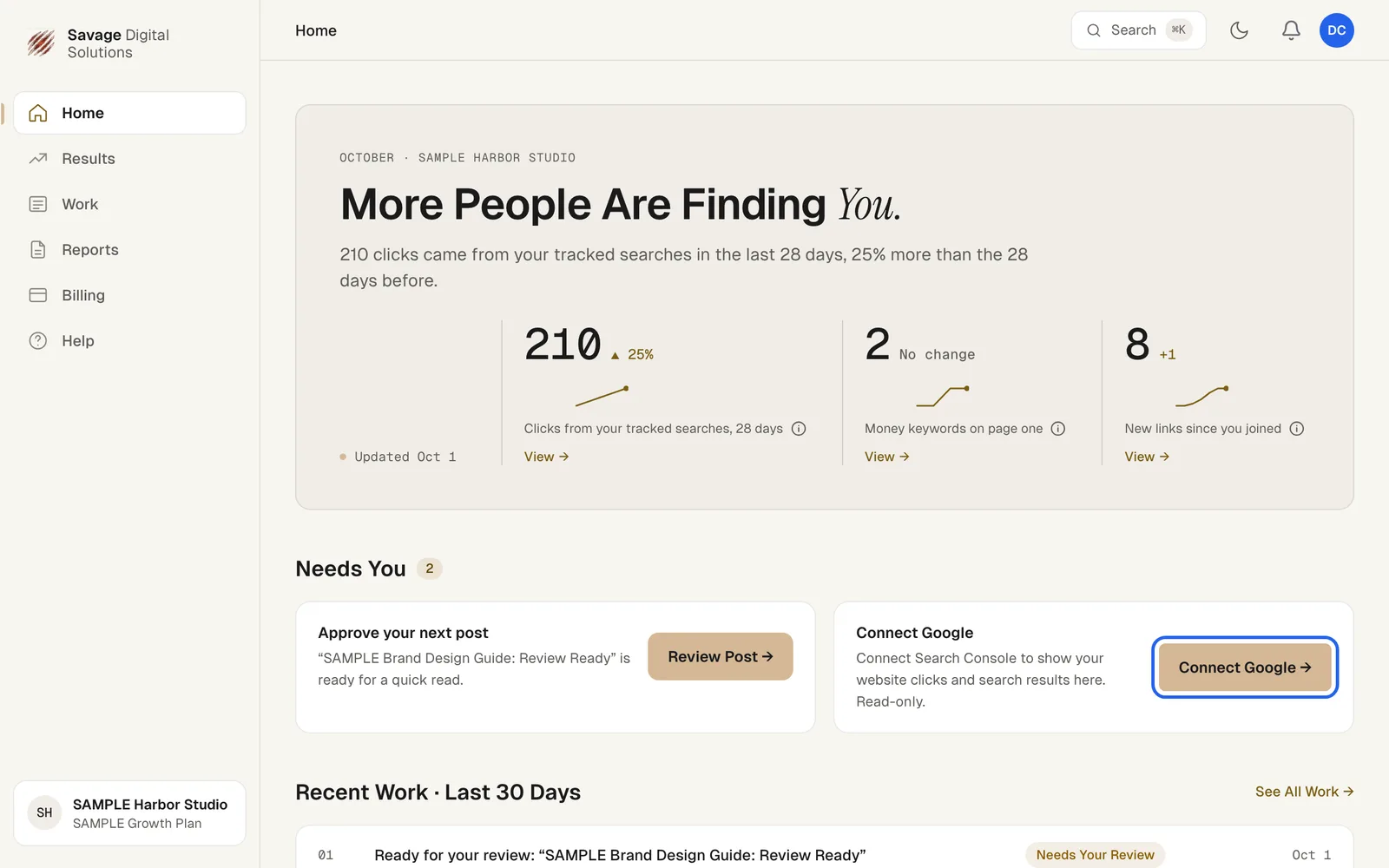
Choose Connect Google on Your Home Page
Until Google is connected, your Home page shows a Connect Google card under Needs You. Choose Connect Google.
Step 2
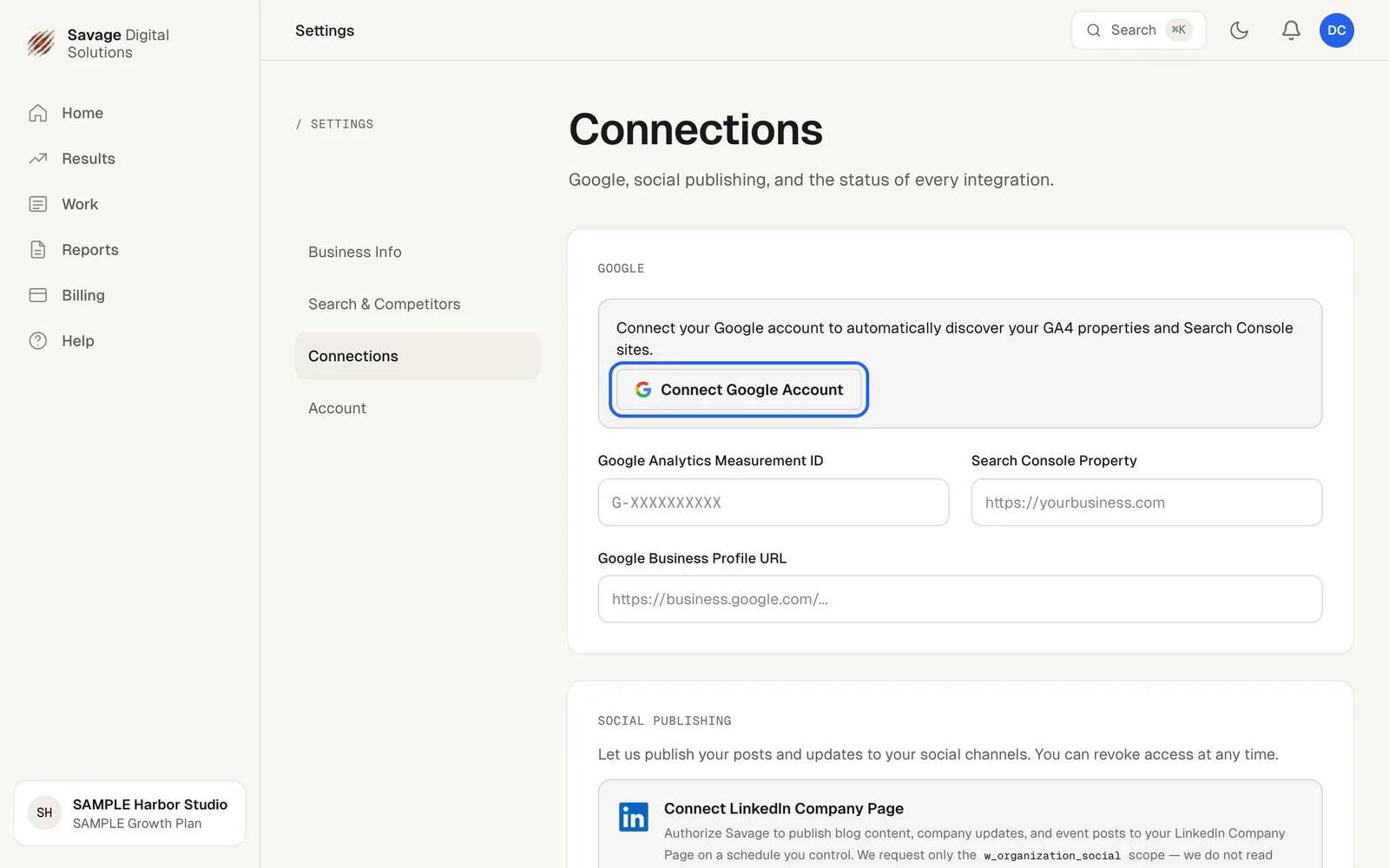
Connect Your Google Account in Settings
This opens Settings, on the Connections tab. Under Google, choose Connect Google Account.
Step 3
Sign in and Approve Read-Only Access
Google asks you to sign in. Use the Google account that manages your website, then approve read-only access to Search Console and Analytics. You'll land back in the portal with the connection marked active, and data starts flowing within a day.