
How To Review Your Notifications
Open Notifications in your portal to review alerts and routine updates, and filter them by category.
Quick Answer
Open Notifications from the bell at the top of your portal. Alerts to review and Routine updates are separate groups, and you can filter by Rankings, Backlinks, Health, Competitors or Summaries.
- Alertsnotices to review
- Filtersby category
Notifications in your Savage Digital Solutions portal collects the notices and updates about your account.
Step 1
Open Notifications and Pick a Group
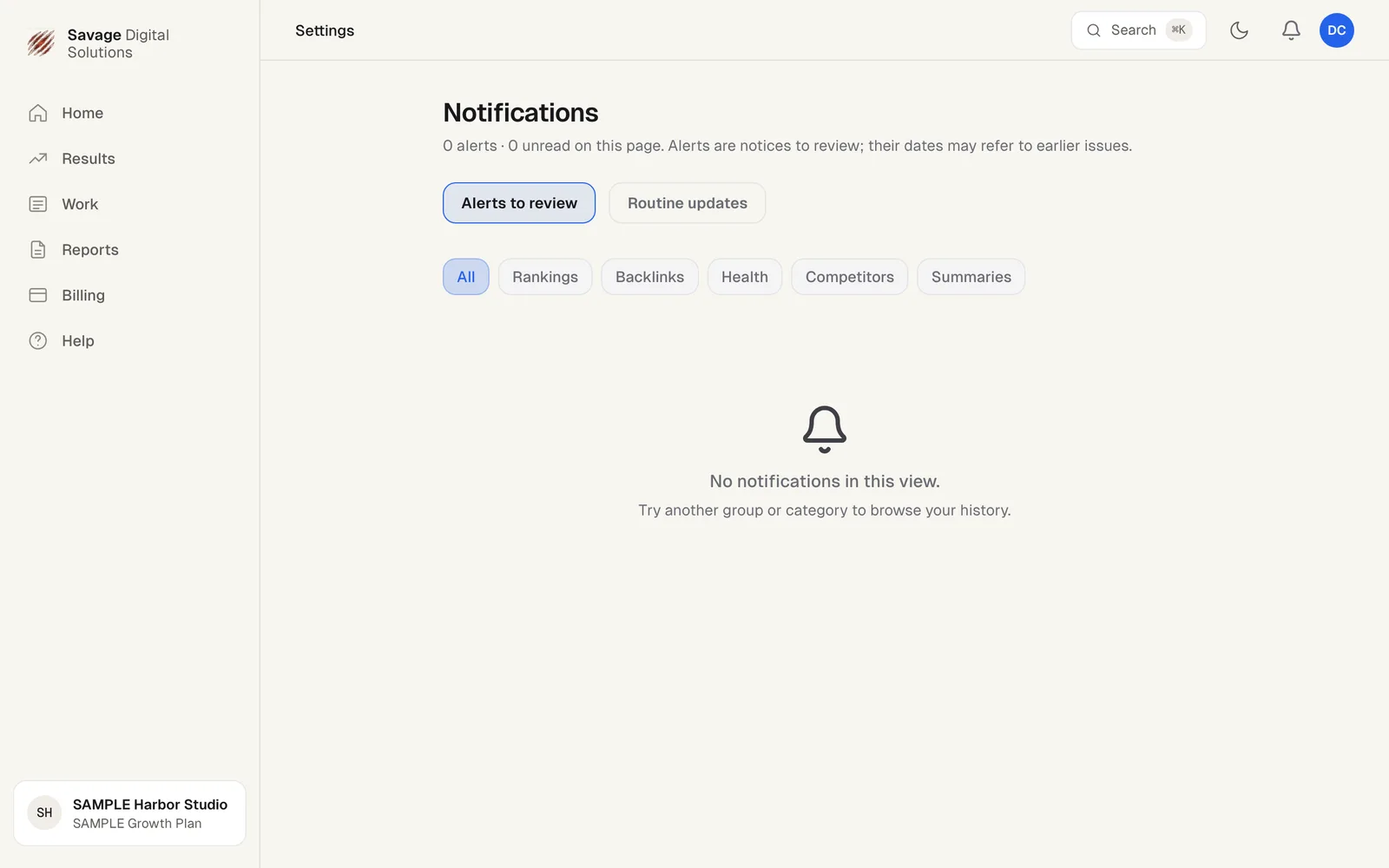
Choose the bell at the top of your portal to open Notifications. The page shows how many alerts and unread items you have.
- Alerts to review holds notices to review.
- Routine updates holds the rest.
Use the category filters to narrow the list: All, Rankings, Backlinks, Health, Competitors and Summaries.
If Something Looks Different
- If you see "No notifications in this view", try another group or category to browse your history.
- Alert dates may refer to earlier issues.
- If something in an alert is unclear, see How To Message Your Savage Digital Solutions Team.