How To Pay An Invoice And Download Receipts
Go to Billing, pay outstanding invoices via Stripe, and download PDF receipts for your records.
- Stripesecure checkout
- PDFdownload receipt
- Automaticreceipts emailed
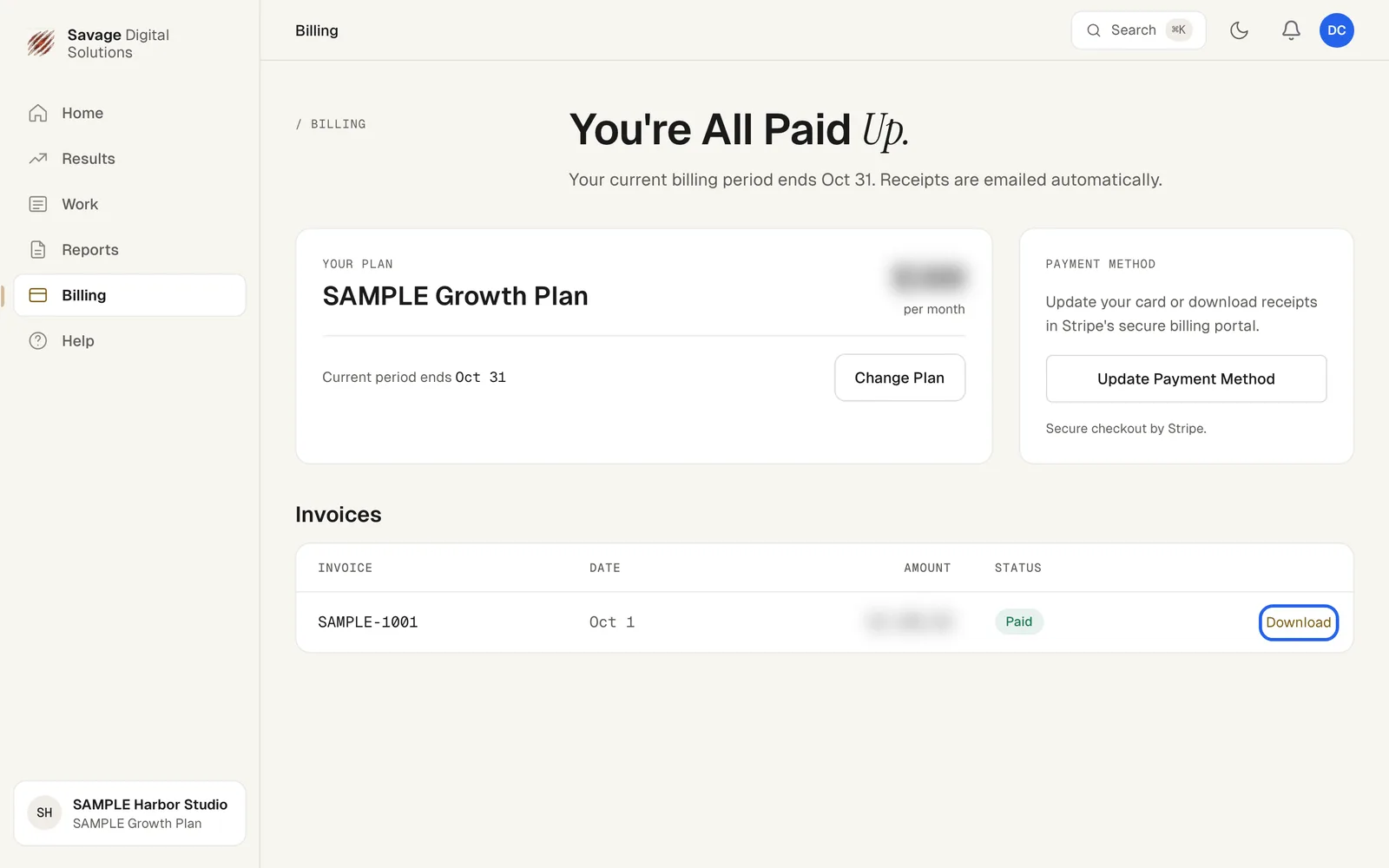
Go to Billing in the portal navigation. If you have an outstanding balance it is shown right at the top, and overdue invoices are flagged in red. Your plan details, payment method, and invoice history are all on this page.
Step 1
View Your Billing Overview
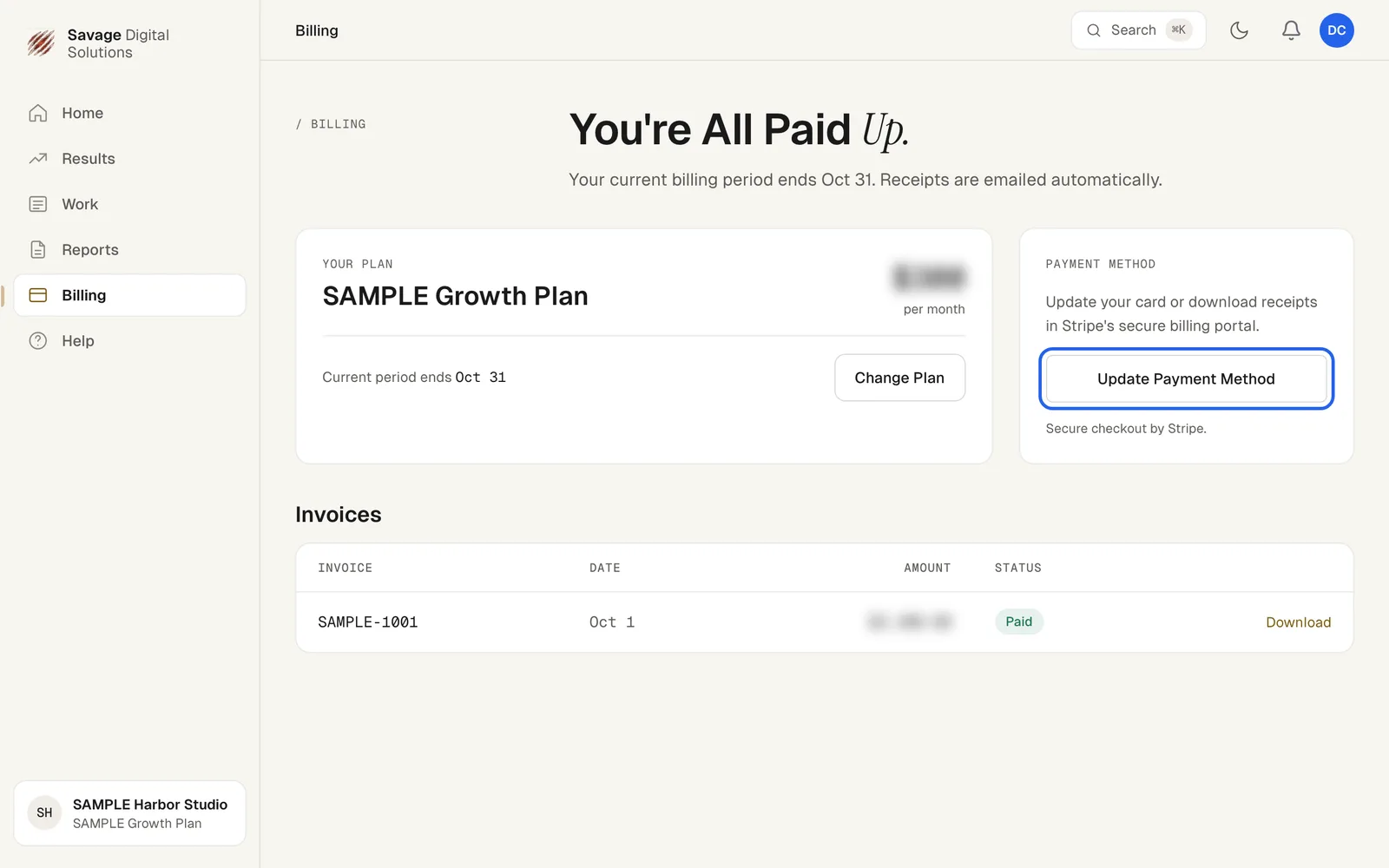
The Billing page shows your current plan, when the period ends, and your payment method. You can update your card or manage receipts via Stripe from here. Below that, the Invoices list shows each invoice with its status.
Step 2
Pay an Invoice or Download a Receipt
Each unpaid invoice has a Pay button. It opens a secure Stripe checkout page where you can pay by card. We never see or store your card details. Once an invoice is paid it moves to Paid status, and a PDF receipt becomes available on the same row for your records.