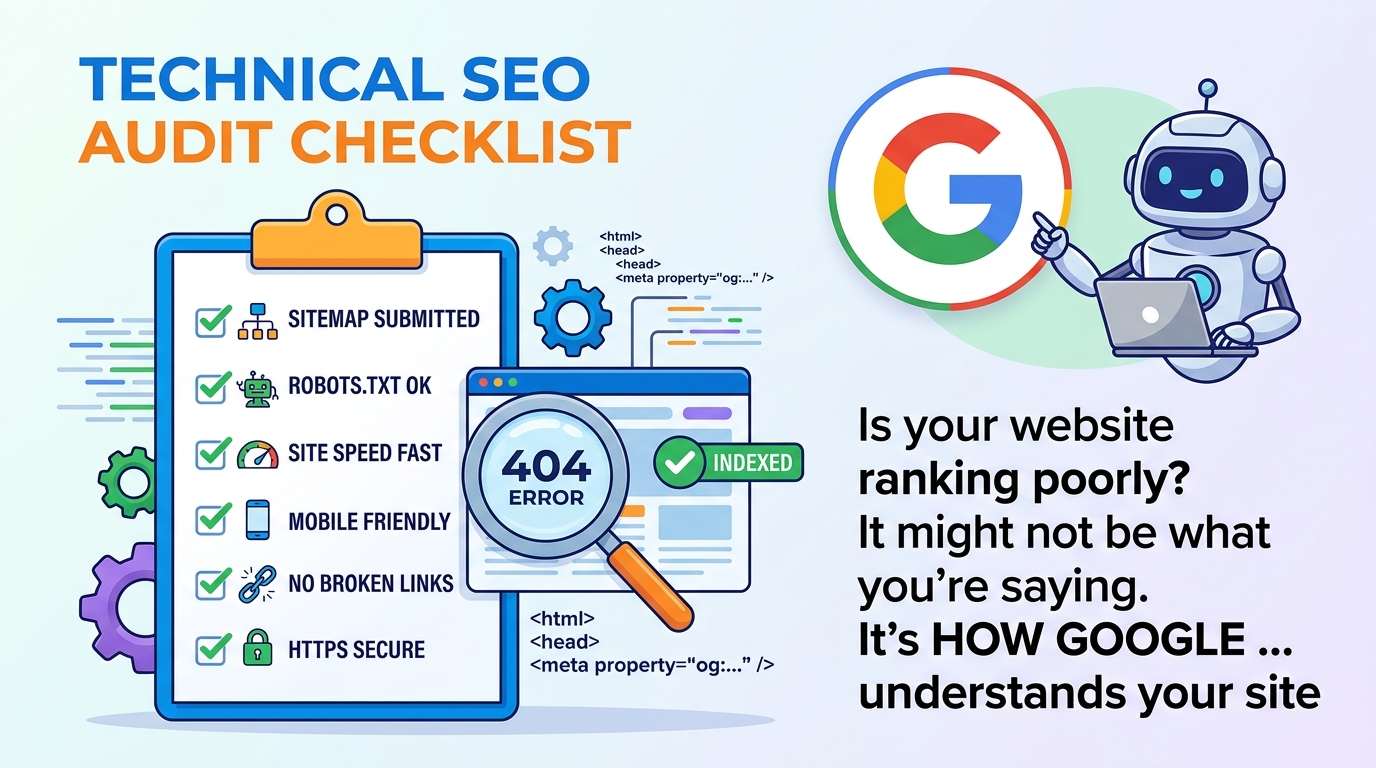
## Why a Technical SEO Audit Is Your First Line of Defense
Most businesses assume their SEO problems stem from weak content or poor backlinks. In reality, over 40% of organic traffic loss traces back to undiagnosed technical issues—broken redirects, slow server responses, or pages blocked from search engines entirely. A technical SEO audit is the foundational health check that reveals what’s preventing Google from finding, rendering, or ranking your site. Without it, even brilliant content and strategic keywords won’t move the needle.
Think of it like an engine diagnostic before a tune-up: you wouldn’t replace spark plugs without first checking for a faulty sensor. Similarly, launching new pages or revamping copy without verifying crawlability, indexation, and rendering is setting performance goals in the dark.
A well-executed audit doesn’t just stop traffic loss—it creates stability. When your site loads fast, renders correctly, and communicates clearly with search engines, you earn trust at the infrastructure level. That trust compounds: better Core Web Vitals correlate with higher click-through rates, longer session durations, and stronger rankings across devices.
## Crawlability: Is Google Even Finding Your Pages?
Crawlability is the gateway to visibility. If search engine bots can’t access your pages, those pages don’t exist in Google’s index—no matter how well-written or keyword-optimized they are. Start here, because everything else depends on it.
First, check your robots.txt file. A misconfigured directive like `Disallow: /` or unintended wildcard rules can block entire sections of your site. Use Google Search Console’s robots.txt Tester to simulate how Googlebot interprets your file. Look for accidental exclusions—especially for critical directories like `/blog/`, `/products/`, or `/resources/`.
Next, verify server response codes. A 5xx error (e.g., 503 Service Unavailable) during a crawl tells Google your site is temporarily offline. Even short outages, if repeated, can degrade crawl frequency. Likewise, 4xx errors—especially 404s on internal links—create dead ends in your site’s crawl path. Audit your internal linking structure using a crawler like Screaming Frog or Sitebulb to surface broken links and redirect chains longer than three hops.
Also, examine your sitemap. It should be XML-formatted, submitted to Google Search Console, and updated automatically when new pages go live. A stale sitemap with outdated URLs or missing key pages signals disorganization to crawlers—and reduces the likelihood that fresh content gets discovered quickly.
## Indexability: Are Your Pages Allowed to Rank?
Crawlability gets Google to your door. Indexability determines whether it’s allowed inside—and whether it’s invited to stay. Many sites unknowingly block indexing via meta tags, HTTP headers, or CMS settings.
Check for `noindex` directives on critical pages. A common mistake: applying `noindex` to category pages, product listings, or location-specific service pages because “they’re thin.” But those pages often target high-intent, local, or commercial keywords—and losing them from search results directly erodes traffic. Use Screaming Frog’s “Indexability” tab to filter pages with `noindex`, `noarchive`, or `unavailable_after` tags.
Also review canonical tags. Misplaced or self-referencing canonicals on duplicate content (like `/product?sort=price` vs. `/product`) confuse search engines and dilute ranking signals. Ensure each page has one clear, accurate canonical pointing to the preferred version.
Finally, audit your URL parameters. E-commerce and blog sites often generate infinite URL variations from filters, tracking codes, or session IDs. Use Google Search Console’s URL Parameters tool to tell Google which parameters change content—and which should be ignored during crawling. This prevents wasted crawl budget and index bloat.
## Core Web Vitals: Speed, Stability, and User Experience
Core Web Vitals measure real-user experience—specifically loading speed (LCP), visual stability (CLS), and interactivity (INP). Since 2021, they’ve been a direct Google ranking factor. Poor scores don’t just hurt UX; they hurt visibility. Sites with “good” Core Web Vitals see up to 24% higher organic conversion rates than those with “poor” scores.
Start with field data from Chrome User Experience Report (CrUX) via Google Search Console. It shows how real users experience your site across devices. Then validate with lab data using PageSpeed Insights or WebPageTest. Don’t rely solely on one tool—field data reveals actual conditions (slow networks, older devices); lab data isolates technical bottlenecks.
For Largest Contentful Paint (LCP), prioritize optimizing above-the-fold assets: compress hero images, preload critical fonts, defer non-essential JavaScript, and upgrade to modern image formats (WebP/AVIF). For Cumulative Layout Shift (CLS), avoid injecting content dynamically without reserving space—especially ads, embeds, or late-loading fonts. Set explicit width/height attributes on images and videos.
For Interaction to Next Paint (INP), minimize long tasks in the main thread. Break up large JavaScript bundles, remove unused polyfills, and audit third-party scripts—especially analytics, chat widgets, and ad tags. Each adds latency and can push INP beyond the “good” threshold (≤200ms).
## Mobile-Friendliness and Responsive Infrastructure
Over 60% of global organic search traffic now comes from mobile devices—and Google uses mobile-first indexing. That means your mobile site isn’t just a version of your desktop site; it’s the *source of truth* for ranking.
Run Google’s Mobile-Friendly Test to check for viewport configuration, tap target sizing (minimum 48×48px), and text readability without zooming. But go deeper: verify that your responsive design doesn’t rely on `display: none` to hide content on mobile. Google treats hidden content as potentially manipulative—if it’s visible on desktop but invisible on mobile, it may not be indexed or could trigger manual actions.
Also, audit your viewport meta tag. It must be present and correctly configured: ``. Missing or incorrect values cause zooming issues and layout shifts, directly harming CLS and user retention.
Then, test your site’s mobile speed separately. Mobile networks introduce latency, and mobile devices have less processing power. A desktop-optimized site that loads in 1.8 seconds may take 4.2 seconds on 3G—and Google treats that as a poor experience. Use Lighthouse’s “Simulated Slow 3G” setting to uncover mobile-specific bottlenecks.
## Structured Data and Schema Markup Integrity
Structured data helps search engines understand your content’s meaning—not just its words. When implemented correctly, it powers rich results: FAQ snippets, product carousels, local business info, and event listings. These occupy more SERP real estate and drive higher CTRs—often 2–3× above standard blue links.
Use Google’s Rich Results Test to validate JSON-LD markup. Common errors include missing required properties (e.g., `@id`, `name`, `url` for Organization schema), mismatched data types (e.g., a string where a date is expected), or duplicate `@context` declarations. Also, ensure your schema is placed in the `` or just before ``—not buried in JavaScript-rendered sections, where crawlers may not execute it.
Audit for consistency across page types. Your homepage should have `Organization` and `WebSite` schema. Product pages need `Product` + `Offer` + `AggregateRating`. Blog posts benefit from `Article` with `datePublished` and `author`. Avoid overloading pages with irrelevant schema—Google may ignore or penalize markup that doesn’t reflect visible content.
Finally, monitor your rich results status in Google Search Console. A sudden drop in impressions for FAQ or How-To results often signals broken or outdated schema—not content changes. Fix those gaps before they cost you visibility in high-CTR features.
## Security, HTTPS, and Trust Signals
HTTPS isn’t just a “nice-to-have” anymore—it’s table stakes. Google has treated HTTP sites as “not secure” in Chrome since 2018, and non-HTTPS pages are excluded from many Core Web Vitals metrics. More critically, mixed content (HTTP resources loaded on HTTPS pages) breaks encryption and can prevent full-page rendering.
Run an SSL Labs Server Test to verify your certificate is valid, properly chained, and supports modern protocols (TLS 1.2+). Check for expired certs, weak cipher suites, or missing HSTS headers—`Strict-Transport-Security: max-age=31536000; includeSubDomains`. HSTS tells browsers to *only* connect via HTTPS, even if users type `http://`.
Then, scan for mixed content. Use the browser’s DevTools Console (under the Security tab) or a crawler like DeepCrawl to flag HTTP images, scripts, or fonts. These load as “insecure” and may be blocked by browsers—causing broken elements and CLS spikes.
Also, verify your site’s security headers: `X-Content-Type-Options: nosniff`, `X-Frame-Options: DENY`, and `Content-Security-Policy`. While not direct ranking factors, they reduce vulnerability to XSS and clickjacking—improving user trust and reducing bounce rates, which indirectly strengthen SEO performance.
## Website SEO Analysis: Tools, Frequency, and Ownership
A website SEO analysis isn’t a one-time event—it’s an ongoing discipline. The best-performing sites run automated checks weekly and deep audits quarterly. But frequency means little without the right tools and clear ownership.
Start with your core stack:
- **Google Search Console**: Free, authoritative, and mandatory. Monitor crawl stats, coverage reports, Core Web Vitals, and manual actions.
- **Screaming Frog SEO Spider**: Crawl up to 500 URLs for free; ideal for technical deep dives (redirects, meta tags, broken links).
- **PageSpeed Insights + WebPageTest**: For lab-based performance diagnostics with waterfall charts and filmstrips.
- **Ahrefs or Semrush**: For backlink health, referring domains, and technical health scores (though these are secondary to GSC and crawlers).
Assign ownership. Too often, “technical SEO” falls into the gap between marketing, dev, and IT. Create a cross-functional checklist with clear RACI: who’s *Responsible* (e.g., SEO manager), *Accountable* (e.g., CTO), *Consulted* (e.g., front-end dev), and *Informed* (e.g., content team).
Finally, document findings in a shared dashboard—not just a PDF report. Track metrics like:
- % of pages with good Core Web Vitals
- Crawl depth vs. crawl budget usage
- Index coverage ratio (indexed / submitted)
- Average time to first byte (TTFB)
- Schema markup error rate
This turns analysis into accountability—and accountability into sustained improvement.
## Frequently Asked Questions
Q: How often should I run a technical SEO audit?
A: Perform automated checks weekly (e.g., crawl errors, Core Web Vitals) and conduct a full technical SEO audit quarterly—or after major site changes like migrations, CMS upgrades, or redesigns. Consistency prevents compounding issues and helps prioritize fixes by impact.
Q: Can I do a technical SEO audit myself, or do I need a specialist?
A: You can run foundational checks using free tools like Google Search Console and Screaming Frog. But interpreting complex issues—like JavaScript rendering failures, server-level bottlenecks, or canonicalization conflicts—requires experience. A specialist adds speed, depth, and confidence in root-cause analysis.
Q: What’s the difference between technical SEO and on-page SEO?
A: Technical SEO focuses on infrastructure: site speed, crawlability, indexability, and security. On-page SEO deals with content-level signals: title tags, headings, keyword usage, and internal linking. Both are essential—but technical issues will undermine even perfect on-page work.
Q: Will fixing technical issues immediately boost my rankings?
A: Not always—but it removes barriers. Rankings improve when Google can reliably crawl, render, and understand your site. You’ll often see traffic recovery within 2–6 weeks after critical fixes like indexability blocks or mobile usability errors are resolved.
Q: How long does a technical SEO audit take?
A: A basic audit using automated tools takes 4–8 hours. A comprehensive audit—including manual testing, log file analysis, and developer collaboration—takes 20–40 hours, depending on site size and complexity. Prioritization is key: fix high-impact, low-effort items first.
Free Website Audit vs Paid Technical SEO Audit Services
Use this checklist when you want a DIY pass. Use the free website audit when you want an automated score and prioritized findings without a credit card. Book a paid technical SEO audit from Savage Digital Solutions when you need GSC + log analysis, revenue-ranked tickets, and optional fix implementation.
| Need | Best path |
|------|-----------|
| Self-guided checklist | This post + website audit checklist PDF |
| Instant automated score | Free website audit tool |
| Human prioritization + punch list | Technical SEO audit services ($1,500-$3,500 audit-only range) |
| Fixes shipped for you | Audit + implementation (from $3,000) |
Who This Checklist Is For
- Marketing and ops owners who can open GSC and a crawler
- Founders validating whether technical debt is the ranking bottleneck
- Teams preparing a vendor conversation (bring this list to the kickoff)
If you already know indexation is broken and need a shippable fix plan this week, skip straight to the paid technical SEO audit services page.
Next step: free score or full technical SEO audit
Run the free website audit (no credit card), download the checklist, or book a human-reviewed technical SEO audit with a ticketed fix list from Savage Digital Solutions.
Free website audit · SEO audit services · Audit checklist